 Wilder Classroom · Teams Room Quick Guide
Wilder Classroom
Teams Room Meeting
How to schedule a meeting in the Wilder Classroom from your computer, join it from the Logitech Tap at the podium, and control the room's cameras, microphones, and speakers.
Schedule the meeting from your computer
Create a new event
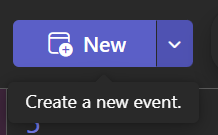
In Teams or Outlook, open your calendar and click New to create a new event.
Add Wilder Classroom as the room
In the location field, type Wilder Classroom and select the room from the list.
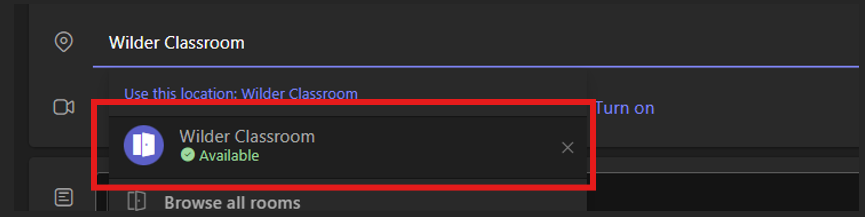
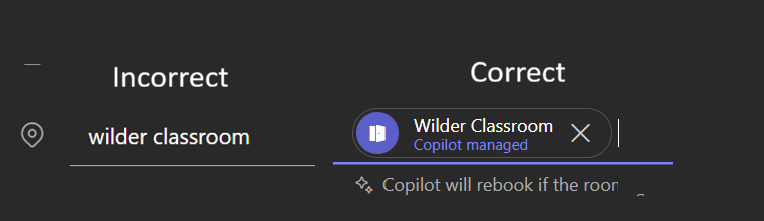
The room is only booked when the icon appears next to the name. Plain typed text does not reserve the room.
 ✕
✓
✕
✓
Invite attendees
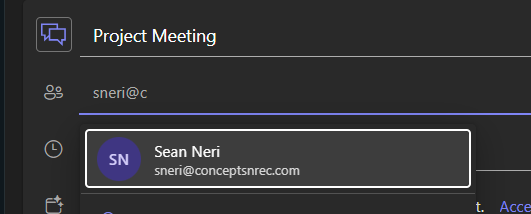
Start typing a name or address and pick each person from the suggestions.
Add the details and send
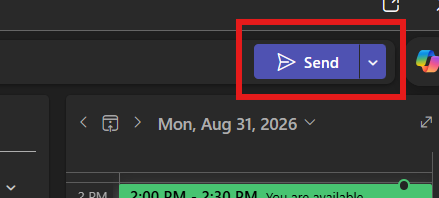
Set the day, time, and agenda, then click Send to create the meeting.
Join the meeting in the classroom
Go to the Logitech Tap at the podium
The Tap is the touchscreen on the podium shelf. It stays on and wakes when you touch it.
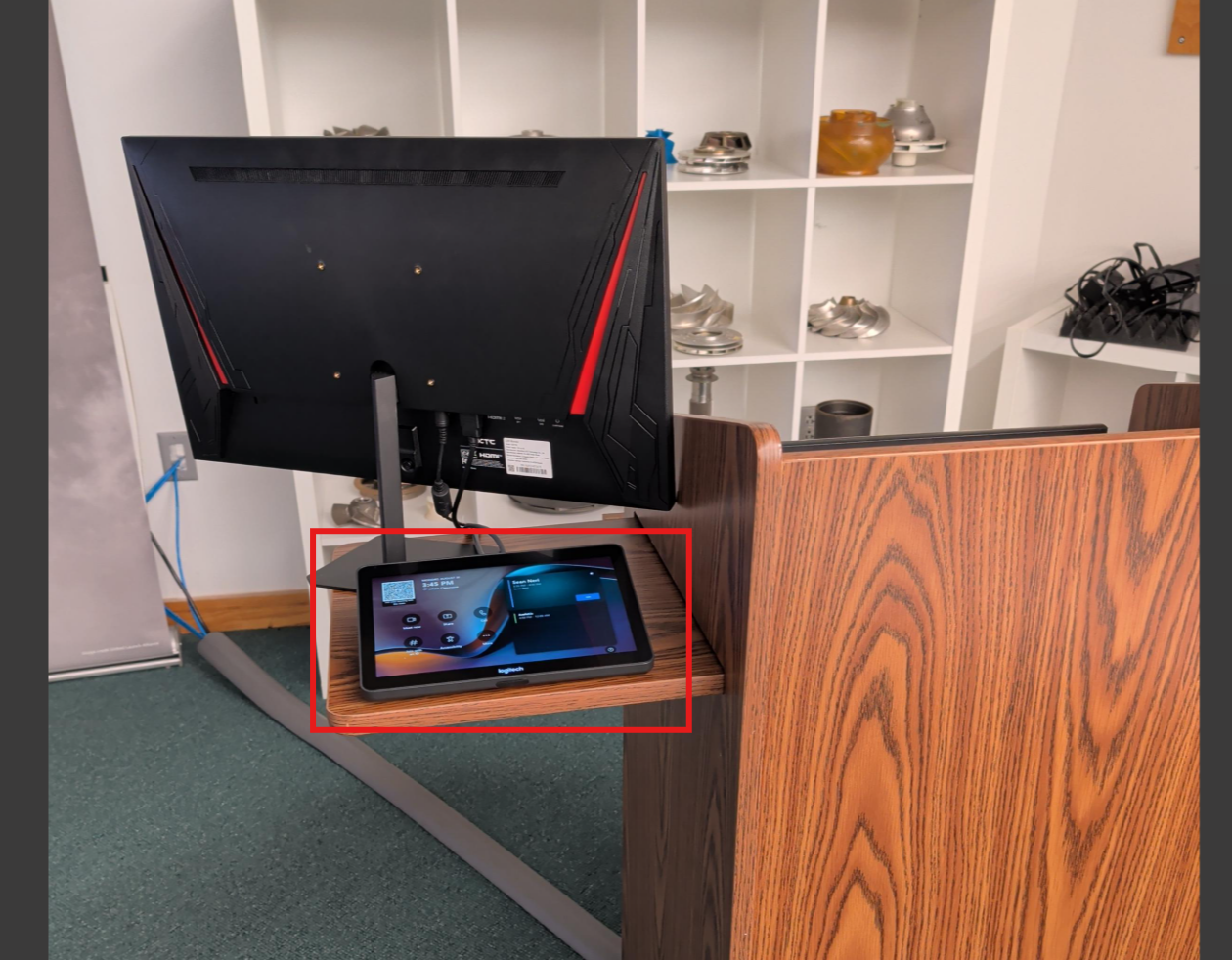
Front of the classroom, on the podium shelf below the monitor. Everything for the meeting is run from this screen — no laptop connection is required.
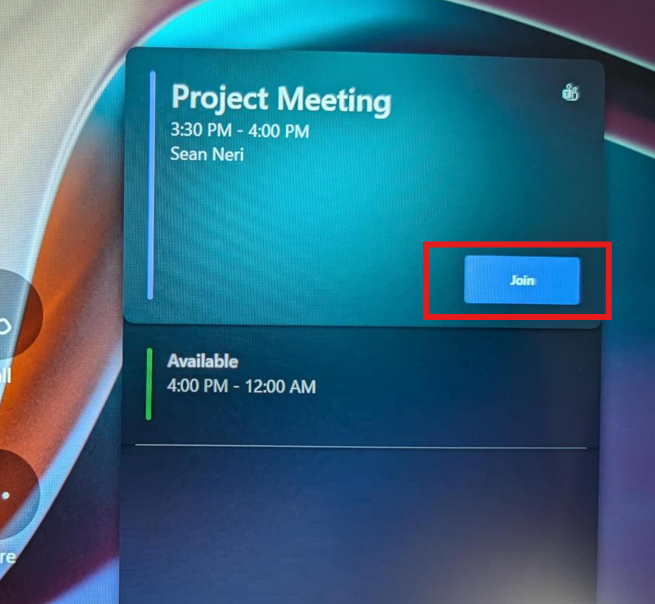
Find your meeting and tap Join
The day's agenda is listed on the Tap. Find your meeting and tap Join.
Put your presentation on the classroom wall
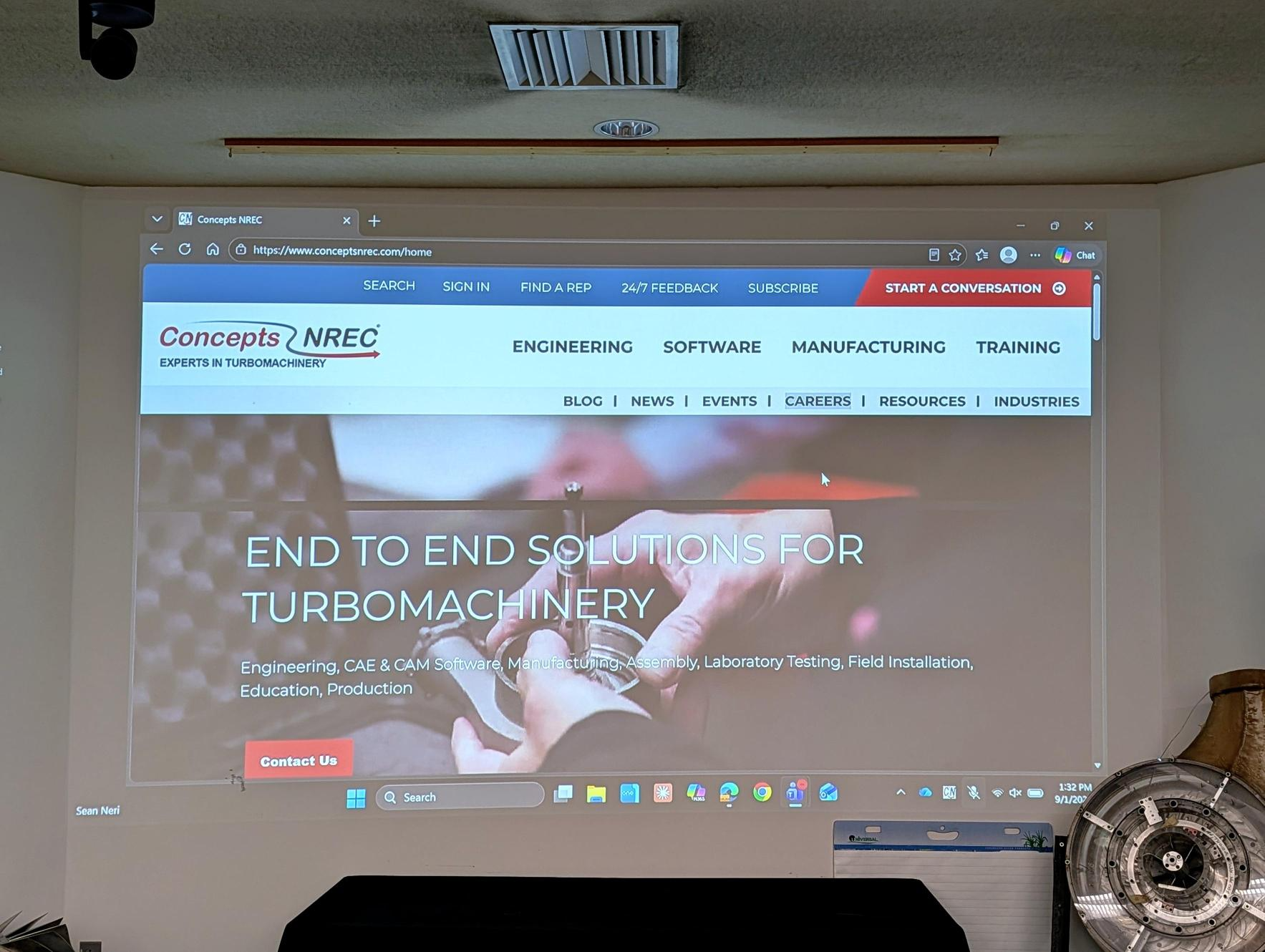
The room joins the meeting from the Tap. To present, join the same meeting a second time from your own computer with your user account, then share your screen — what you share is projected on the main wall of the classroom.
Join from your computer with your own account
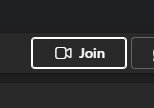
Open the meeting in Teams on your laptop and click Join. Your user account is now in the meeting alongside the room.
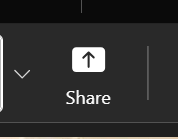
Click Share and pick your screen
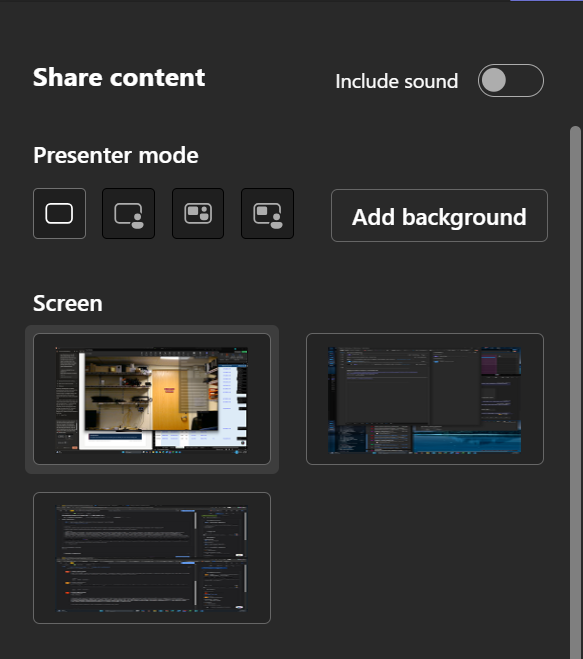
In the meeting controls on your computer, click Share, then choose the screen or window you want the room to see.
Turn on Include sound if you are playing audio
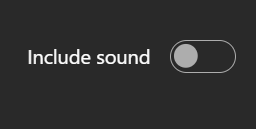
If your presentation has video or sound, switch on Include sound at the top of the Share content panel before you share. Without it, the room hears nothing.
Run the room: cameras, microphones, and volume
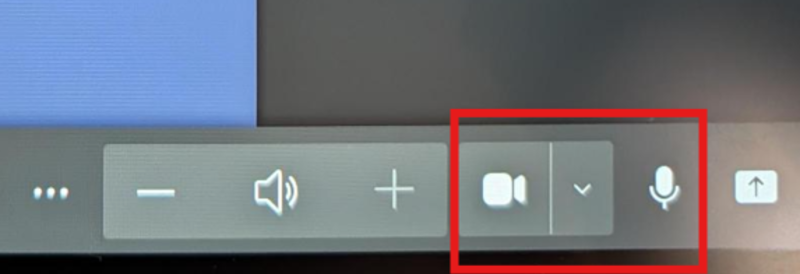
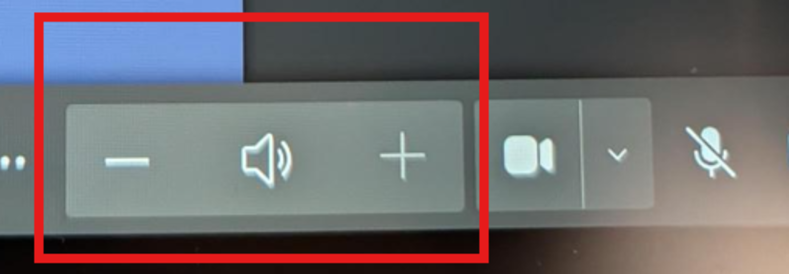
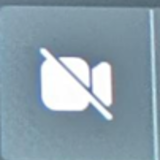
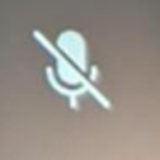
Once you are in the meeting, the control bar sits along the bottom of the Tap screen. Camera and microphone are on the right, speaker volume on the left.
Ending the meeting
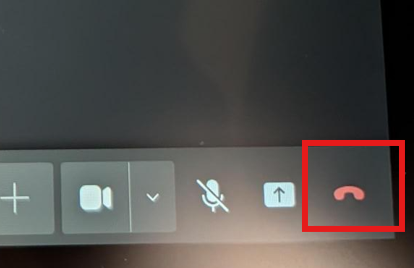
When the meeting is over, tap the red hang-up icon on the Tap to end the session for the room.
The Logitech Tap does not need to be turned off. It goes into standby on its own once the meeting ends.